Introduction
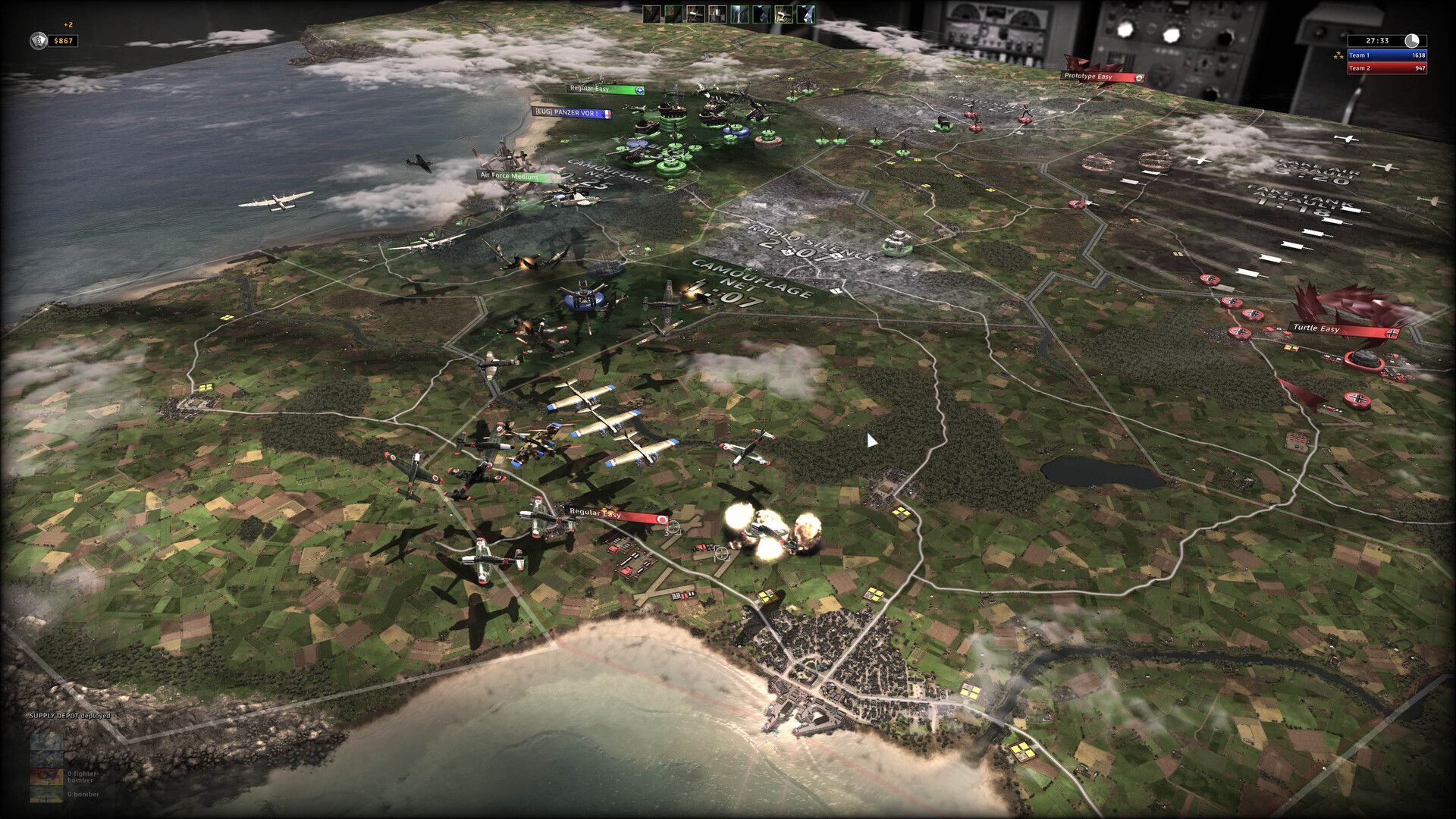
After more than a decade of absence, Ubisoft’s 2010 military strategy game RUSE has made a triumphant return to Steam. Originally delisted from multiple digital storefronts, this beloved real‑time strategy (RTS) title is now available once more – and it comes with some exciting updates. Whether you already own the game from years ago or are a newcomer eager to command armored divisions, this guide will walk you through everything you need to get RUSE running on your system. We’ll cover how to reclaim your copy, purchase it if needed, download it with all its DLC intact, and even optimize the experience on the Steam Deck. Let’s dive in!
What You Need
- A Steam account – if you don’t have one, create it for free at store.steampowered.com.
- A stable internet connection for downloading.
- A Windows PC (or Steam Deck running SteamOS) – RUSE is also verified for the Deck.
- Approximately 8 GB of free disk space.
- Optional: a mouse and keyboard for classic RTS controls; the Steam Deck can use its built‑in controls or external peripherals.
Step‑by‑Step Instructions
Step 1: Verify Your Previous Ownership (If Applicable)
If you purchased RUSE on Steam before it was delisted, the game should now automatically appear in your library. To confirm:
- Launch the Steam client and log into your account.
- Click on your library tab.
- Type “RUSE” in the search bar within your library.
- If you see the game listed, skip to Step 3. If not, check your purchase history under Account Details → View Purchase History.
Step 2: Purchase RUSE on Steam (For Newcomers)
If you never owned the game, you can now buy it directly from the Steam store. The re‑release includes all previously released DLC at no extra cost, making it a complete package. Here’s how:
- Go to the RUSE Steam page.
- Click Add to Cart and complete the checkout process.
- Once purchased, the game will be added to your library immediately.
Step 3: Download and Install RUSE
Now that RUSE is in your library, it’s time to install it. The process works identically for Windows and Steam Deck.
- In your Steam library, select RUSE from the list.
- Click the Install button (or Play if it’s already installed).
- Choose your installation directory (the default is usually fine) and let the download complete.
- Wait for the installation to finish – it should include all DLC packs automatically, as confirmed by the publisher.
Step 4: Verify DLC and Game Version
To ensure you have the full experience, check that all DLC is properly recognised. From your library:
- Right‑click RUSE and select Properties.
- Go to the DLC tab. You should see entries like “RUSE – The Chimera Pack” and “RUSE – Hidden Traps” (among others). All should be ticked.
- If any are missing, restart Steam and try again. The developer has ensured all old DLC is included in this re‑release.
Step 5: Configure Settings for Best Experience
RUSE has received compatibility updates for modern systems and the Steam Deck. Still, a few tweaks can improve performance and control:
- On Windows PC: Run the game in windowed mode if you encounter resolution issues. Navigate to Options → Display and set the resolution to your monitor’s native setting.
- On Steam Deck: The game is verified, but you may want to adjust the controller layout. Open the Quick Access Menu (press the STEAM button), go to Controller Settings, and choose a community layout (e.g., “RUSE Optimized”) for better touchpad and button mapping.
- Graphics: Lower shadows or anti‑aliasing if you experience frame drops. The game is not demanding, but older hardware may need minimal adjustments.
Step 6: Start Playing and Enjoy
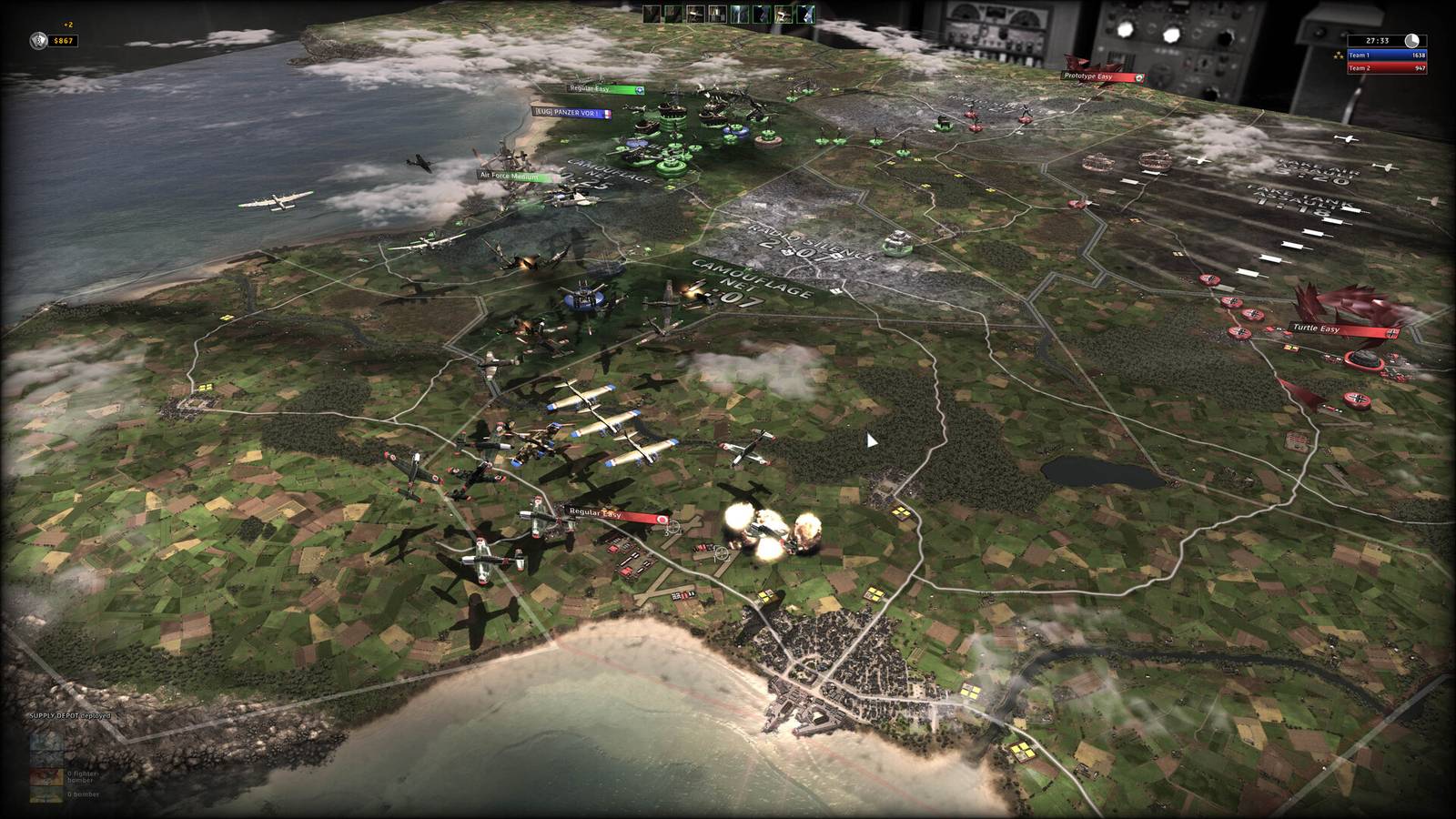
With everything installed and configured, you’re ready to command your forces. Launch the game from Steam, either on your desktop or in Steam Deck’s gaming mode. The main menu offers single‑player campaigns (including the well‑rated tutorial), skirmish mode, and multiplayer. If you’re new, the tutorial is highly recommended – it teaches the unique “ruse” mechanics that let you bluff and deceive opponents.
Tips and Additional Advice
- Performance on Steam Deck: Set the TDP limit to 10W in the Quick Access Menu to balance battery life and performance. The game runs smoothly at medium settings.
- Multiplayer considerations: While the servers are back online, matchmaking may be sparse. Consider arranging games with friends or joining the RUSE community Discord server.
- Save your progress: The game supports cloud saves via Steam Cloud, but it’s wise to manually backup your save files occasionally – locate them in
%USERPROFILE%\Documents\RUSE\saveon Windows. - Mods and community content: The original modding community was active; check Steam Workshop for any new or revived content. Some mods require a few extra steps to install.
- Troubleshooting: If the game fails to launch, verify the integrity of game files via Steam (right‑click → Properties → Local Files → Verify Integrity). This often resolves missing or corrupted files.
With this guide, you can confidently reclaim RUSE and dive back into its intricate battlefield deceptions. Enjoy the return of a classic RTS!