Introduction
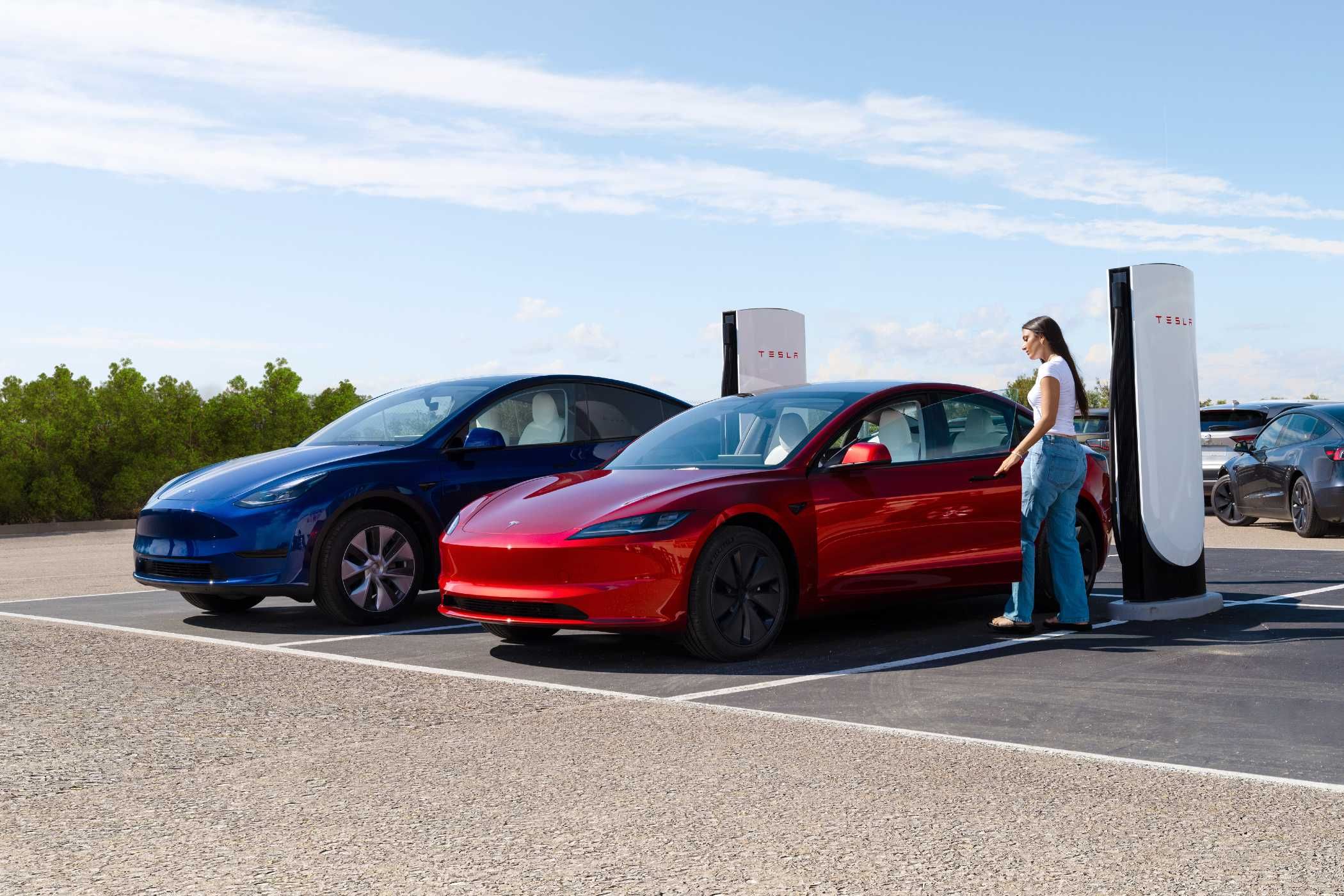
If you own a Tesla, you've likely experienced the occasional frustration of pulling up to a Supercharger station only to find a line of cars snaking around the lot. The wait can be unpredictable, and sometimes tempers flare. But Tesla is now rolling out a solution that could change the game entirely: a virtual Supercharger waitlist integrated into the Tesla mobile app. Instead of physically queuing up, drivers can join a digital line and receive real-time updates on their spot. In this guide, we'll walk you through exactly how to use this new feature, from checking eligibility to claiming your charger when it's your turn. No more fighting over stalls—just a smooth, app-based experience.
What You Need
- A compatible Tesla vehicle – This feature is currently being tested on select models with the latest software (2024.x and later). Ensure your car is updated via the main screen or Tesla app.
- The Tesla mobile app (version 4.30 or higher) – Available on iOS and Android. Check your app store for updates.
- A Tesla account – Log in with the same credentials you use for your vehicle.
- An active internet connection – Both your phone and your car need to be connected to cellular or Wi-Fi.
- Location services enabled – So the app knows where you are and which Supercharger you're heading to.
- Sufficient battery charge – You should have enough range to reach the station, plus some buffer while you wait in line.
Step-by-Step Guide
Step 1: Update Your Tesla App and Vehicle Software
Before you can use the virtual queue, both the Tesla mobile app and your vehicle's firmware must support it. Open the App Store or Google Play and install any pending updates for the Tesla app. Next, go to your car's touchscreen: tap Controls > Software > Software Update and ensure you're running the latest version. If an update is available, install it while parked. You'll see a notification in the app once the new waitlist feature appears.
Step 2: Open the Tesla App and Navigate to Charging
Once everything is updated, launch the Tesla app. On the home screen, tap the Charging icon (it looks like a lightning bolt). You'll see a map of nearby Superchargers, along with information about each one—number of stalls available, current usage, and whether the virtual waitlist is active. Look for a badge that says Waitlist Active or a line icon next to the station name.
Step 3: Select Your Destination Supercharger
Choose the Supercharger where you want to charge. Tap on its pin or name to open the station details page. Here you'll see real-time data: how many stalls are free, how many are occupied, and the estimated wait time if the queue is running. If the virtual waitlist is available, you'll see a button that says Join Waitlist or Add to Queue. Tap it.
Step 4: Confirm Your Arrival and Join the Queue
The app will ask you to confirm that you are on your way to that specific Supercharger. You may need to grant location permissions one-time. After confirmation, you'll see a confirmation message: You are now in line. Your position in the queue will appear as a number (e.g., 3rd in line). The app will also display the estimated time until your turn—usually calculated based on average charging sessions and current queue length.
Step 5: Monitor Your Queue Position in Real Time
You don't have to stay glued to the app; Tesla will send you push notifications when you move up in the queue. But you can also check manually by opening the charging tab again. The number updates automatically. If you decide to cancel—for example, if you find another station—simply tap Leave Queue in the same screen. This frees up your spot for others.
Step 6: Receive the 'Your Turn' Notification
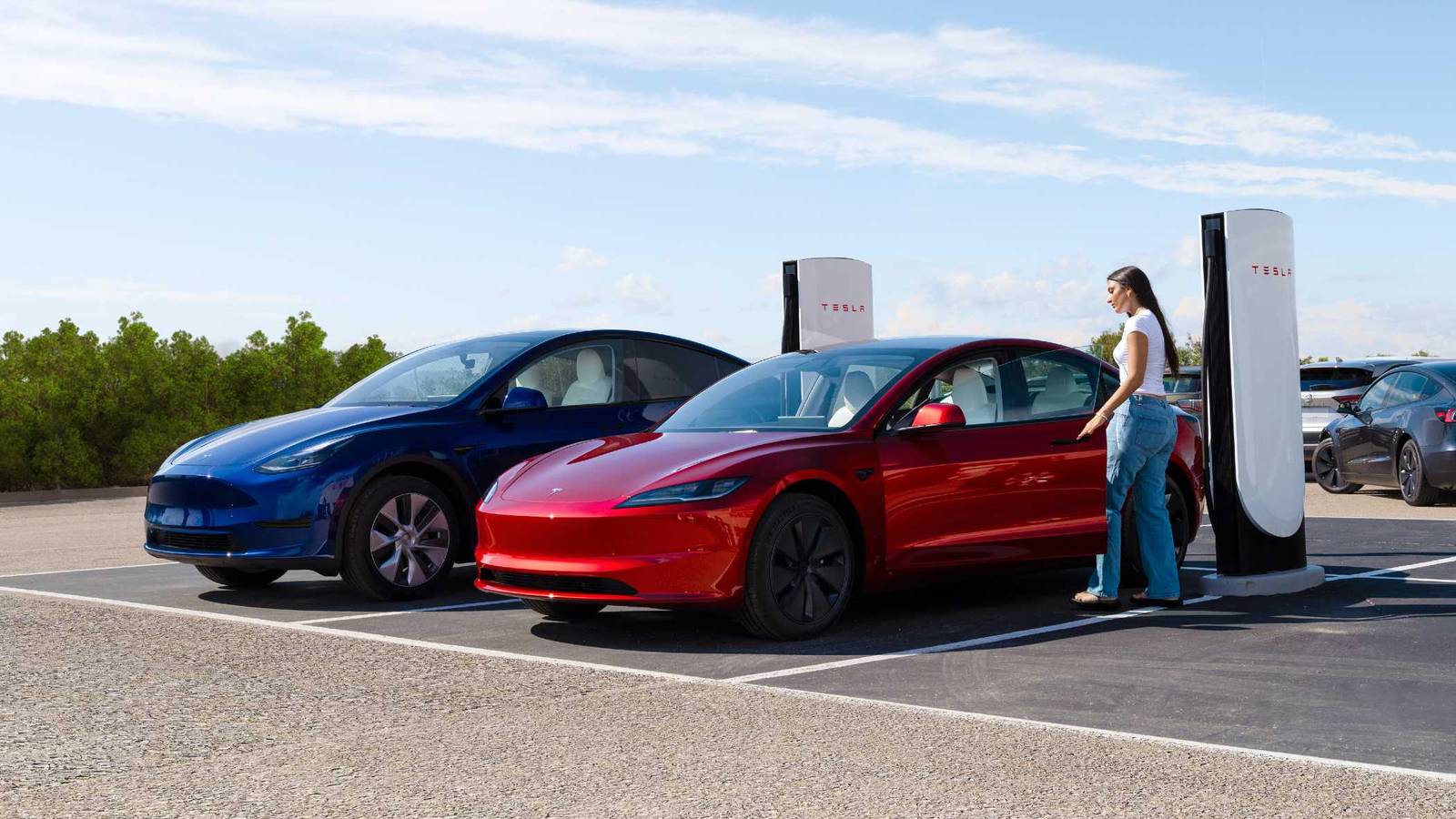
When you reach the front of the line, the app will send an alert with instructions (e.g., “Please proceed to Stall #4 – you have 10 minutes to arrive”). The notification will also show you a map link to the station entrance. At this point, you should head to the Supercharger. Be aware: if you don't arrive within the allotted grace period (usually 5–10 minutes), the app may remove you from the queue and offer the spot to the next person.
Step 7: Plug In and Start Charging
Once you're at the designated stall (the app will tell you which number), park and plug in. The charger should recognize your vehicle and begin the session automatically. You'll see the charging progress in the app. The queue feature remains active only for that single charging session; once you're done, you'll be removed from any remaining queue positions. If you want to charge again at the same station, you'll need to re-join the waitlist.
Tips for a Smooth Experience
- Check the waitlist before you leave home. Use the app to see if your preferred Supercharger has an active queue. If the wait is long, consider an alternative station or plan to charge at a different time.
- Keep your phone charged. The virtual queue relies on your mobile app and push notifications. A dead phone means you might miss your turn.
- Don't skip the 'Join Waitlist' step while driving. Pull over safely to complete the process. Using the app while driving is dangerous and illegal in many areas.
- Be aware of the grace period. Once you're notified, move promptly. If you're far away, don't join the queue until you're close enough to arrive within the window.
- Respect the queue. The system does its best to be fair. Cutting the line physically won't work because the app assigns stalls. But if you see someone trying to sneak in, report it to Tesla via the app.
- If the waitlist is full or unavailable, drive to a different station. Some smaller Superchargers may not have the feature enabled yet. Use the app's map to find one that does.
- Update your app regularly. Tesla may tweak the queue logic, add new features like multiple vehicle accounts, or change the user interface. Keep up with updates to avoid glitches.
- Remember: this feature is still in testing. Be patient if you encounter bugs. Provide feedback through the app so Tesla can improve the system for everyone.
With these steps and tips, you'll be ready to bypass the old-fashioned scramble over Supercharger stalls. The virtual waitlist promises to make EV charging less stressful and more efficient—one digital queue at a time.