With the release of Ubuntu 26.04 LTS, Canonical has shifted the way users manage Ubuntu Pro subscriptions. The familiar Software & Updates utility is no longer part of the default install, replaced by a dedicated section within the new Security Center app. This change aims to simplify the enrollment and configuration process while keeping all essential options in one place. Whether you are a personal user or an enterprise administrator, setting up Ubuntu Pro is now more intuitive. Below, we answer common questions about this transition and how to get started.
What happened to the Software & Updates utility in Ubuntu 26.04 LTS?
In Ubuntu 26.04 LTS, Canonical decided to remove the Software & Updates utility from the default installation. Instead, the functionality related to Ubuntu Pro—such as subscription management, updates, and security settings—has been integrated into the Security Center app. This is part of a broader effort to centralize security-related tasks and provide a more streamlined user experience. While the old tool allowed access to Pro options via a dedicated tab (Software & Updates > Ubuntu Pro), the new layout offers a cleaner interface with more space for explanations. Users who previously relied on the old utility will find the transition smooth, as all core settings remain accessible from a single, modern application.

How do I access Ubuntu Pro settings in the new Security Center?
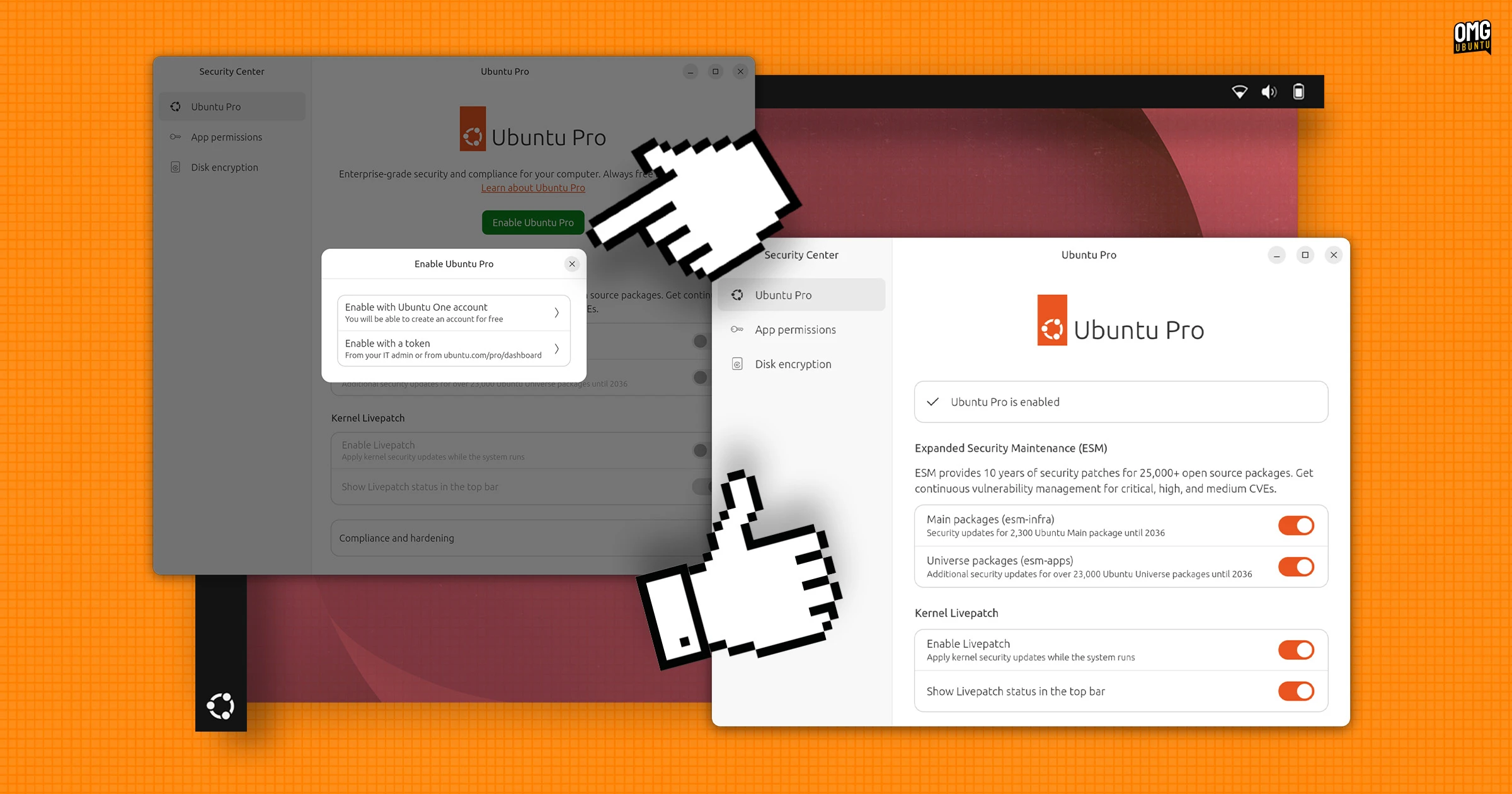
Accessing Ubuntu Pro settings is straightforward. After upgrading or clean-installing Ubuntu 26.04 LTS, simply open the Security Center app from the application menu or by searching for it in the Activities overview. Once inside, look for the Ubuntu Pro section—usually located in the left sidebar or as a main tab. Click on it to view subscription status, enable or disable Pro services, and manage enrollment. The interface is designed to be self-explanatory, with each toggle accompanied by a brief description of what it does. For first-time users, the app may prompt you to sign in with your Ubuntu One account or enter a subscription token. The whole process takes just a few clicks.
Is the Ubuntu Pro setup experience better than before?
Yes, the setup experience has improved significantly. Previously, the Software & Updates utility had a cramped layout where options were squeezed into a single tab, making it easy to overlook settings. The new Security Center app dedicates more screen real estate to each option, providing concise explanations for every toggle and preference. This reduces confusion, especially for users unfamiliar with Ubuntu Pro’s features. Enrollment is also faster: instead of navigating multiple windows, you can complete the entire process within the Security Center. While the range of options remains identical to the old setup, the modern design and clearer labeling make managing your subscription much more pleasant. For new users, this is a welcome improvement.
Who can use Ubuntu Pro for free and what are the limits?
Ubuntu Pro is available for free to personal users on up to five devices. This means you can secure your home computers, laptops, or test machines without paying a cent. The free tier includes access to security patches, extended support for over 23,000 packages, and compliance tools (like FIPS and CIS hardening) that are typically reserved for enterprise customers. To take advantage of this offer, you need an Ubuntu One account and can enroll each device individually. For businesses, enterprises, or anyone managing a fleet of Ubuntu installations, a paid subscription is required. Paid plans scale from small teams to large data centers, providing additional features such as landscape management, 24/7 support, and advanced auditing capabilities.
How does enrolling in Ubuntu Pro work now?
Enrolling in Ubuntu Pro is simpler than ever. Open the Security Center app and go to the Ubuntu Pro section. If you haven’t already, you’ll be asked to sign in with your Ubuntu One account. Once signed in, the app will detect whether you have a free or paid subscription linked to that account. For personal users, you simply confirm the device—up to five allowed—and click “Activate”. The system then automatically applies the Pro configuration. For paid subscriptions, you can enter a token provided by your organization or purchased online. The entire process takes under a minute, and the interface provides real-time feedback, such as success messages or error alerts. This streamlined workflow eliminates the need for manual edits to configuration files or terminal commands.
What are the key differences between the old and new interfaces?
The old Software & Updates > Ubuntu Pro tab was functional but felt cluttered. Settings were compactly stacked, with little room for explanatory text. In contrast, the Security Center offers a roomier layout with distinct sections for each setting, making it easier to read and navigate. Additionally, the new app provides more visual cues, such as status badges and progress indicators during enrollment. While both interfaces offer the same core options (like enabling ESM, FIPS, or livepatch), the new one includes brief descriptions next to each toggle, clarifying what each feature does. For example, instead of just a checkbox for “Enable Livepatch”, you now see a small paragraph explaining how kernel live updates work. Overall, the shift prioritizes clarity and user-friendliness without sacrificing functionality.